
I have Claude open all day.
It’s where I put together my proposals and where I work on my content.
Ask me “What is Claude?” and I’ll tell you it’s a collaborator: you explain what you want, and it does it. It’s the AI made by Anthropic. You talk to it in plain language, you go back and forth, and it does the work on your business’s files and tools.
The decisions stay with me: what I ask for, what I keep from what it gives me, and what actually goes out.
Let’s go through it button by button, in the order I set it up.
If you’re in a hurry, here’s the short version:
- start free at claude.ai and move to Pro after 1-2 days
- before your first serious chat, check 3 settings: instructions, memory, privacy
- a chat for something you do once, a project for work you repeat, Cowork when you want finished files back
- connectors and skills come last, once you know which job you’ll give it
What is Claude
Claude is Anthropic’s AI assistant: you talk to it and it answers, much like ChatGPT, which you may have already tried. For a business it stands out because it works on your own files and tools and hands back finished work: a piece of writing, a proposal, a spreadsheet, a presentation.
Throughout this guide I name every button exactly as it appears in the app, so you can follow along on your own screen.
How it works in 30 seconds
Think of a junior colleague who started at your company today.
They know a lot. About your business, though, they only know what you tell them in that moment.
That’s how I treat Claude too. The more you explain about your company, how you talk and what a good result looks like to you, the closer its work gets to the way you’d do it yourself.
All of this is called context: everything the AI knows about you and about the job you’re giving it. You’ll see the word all through this guide, because almost every result depends on it.
Where you still need to check it
To be fair, it has its limits:
- very precise calculations need a second look
- always check facts, dates and names
- a vague instruction gets you a vague result
⚠ Careful: Claude will always give you an answer, and sometimes that answer is wrong. Check the numbers and the facts, the way you’d check a new employee’s work.
My rule for any business: if something doesn’t make your customer’s experience better or save you real time and money, there’s no point adding it. Don’t add AI just to say you have AI.
Claude or ChatGPT
Claude and ChatGPT belong to the same family of tools, and both handle the basics equally well. Each one is stronger at different things, though, and once you use them for real work in a business, the differences show up quickly.
Where Claude wins:
- it works on your own files
- it remembers how your company runs
- it takes serious tasks all the way to the end, without you holding its hand
Where ChatGPT still wins:
- quick searches on the web
- everyone already knows it
✓ Tip: you don’t have to pick one. I keep ChatGPT for speed and ideas, and I build my serious systems on Claude. It comes down to personal preference. ChatGPT has strong tools of its own too, like ChatGPT Work and Codex.
Where to use Claude
You can use Claude in 3 places with the same account: in your browser, in the desktop app and in the mobile app. Your chats follow you everywhere, and to work with the files on your computer you need the desktop app.
- Browser: go to claude.ai from any computer. For your first chats, that’s enough.
- Desktop app: download it from Anthropic’s download page or from the download icon at the bottom left. This is where it works with the folders on your computer.
- Mobile: an app for iOS and Android, with the same account and the same chats.
I work in the desktop app, because that’s where my files are.
On the same download page you’ll also find add-ins for Excel, PowerPoint, Word, Outlook and Chrome. Leave those for when you’ve set up the basics.
How to create your account
Go to claude.ai and sign up with Google, Apple or your email.
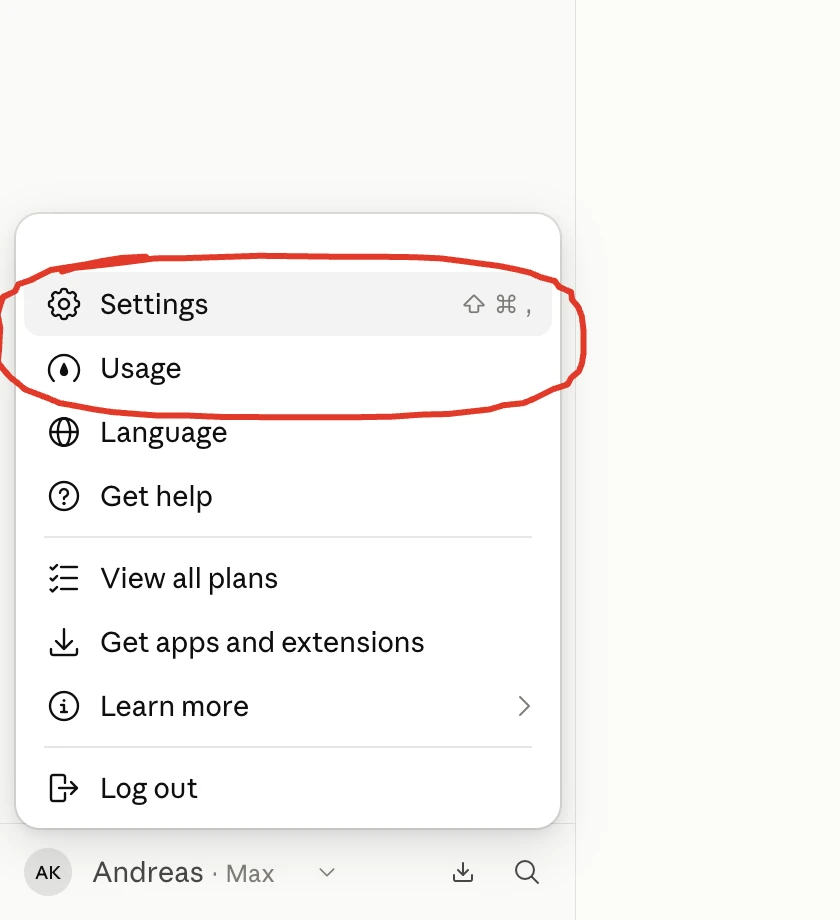
Click your name at the bottom left and the account menu opens. From there you get to Settings, Usage, the plans (View all plans) and the apps (Get apps and extensions).
How much Claude costs
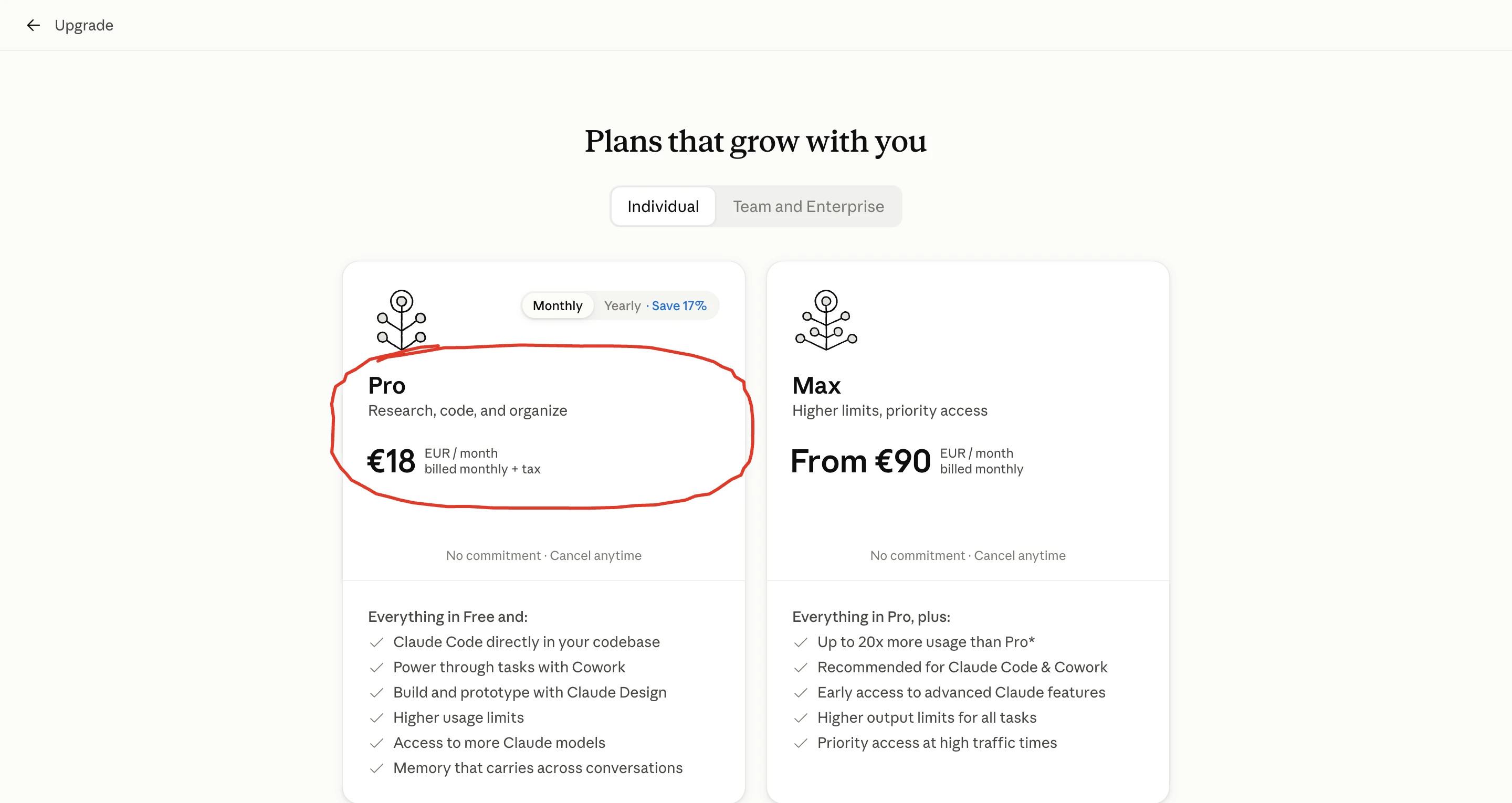
Claude starts free. Pro costs €18 a month billed monthly, or €15 a month billed yearly, plus tax, and adds Claude Code, Cowork and higher limits. Max starts at €90 a month, for people who work in it all day.
| Plan | Price | What you get | Who it’s for |
|---|---|---|---|
| Free | €0 | chats, up to 5 projects and memory, with the lowest limits | a first taste |
| Pro | €18 a month, or €15 a month billed yearly | Claude Code, Cowork, Claude Design for designs and prototypes, more models, higher limits | the minimum for serious work |
| Max | from €90 a month | up to 20 times the usage of Pro, priority at peak times | anyone who works in it all day, like me |
★ Wait, what’s this?
So far you’ve seen Claude as a chat window. The Claude Code you see in Pro is the same Claude, working inside your computer and doing the job itself: it creates files, it builds a whole website.You don’t need to know how to code. You talk to it normally, as if you were the CEO and it was your technical person. For now, keep one thing in mind: when you hear about Claude Code, it’s Claude doing the work.
My rule: start free for 1-2 days, and as soon as you see it doing real work for you, go straight to Pro.
Don’t stay on Free trying to decide. You’ll reach the wrong conclusion, because Free holds you back.
You might be thinking: why pay before I’ve seen what it can do?
Because Free is missing exactly the parts that do real work for a business, Cowork and Claude Code. And you can cancel Pro whenever you want.
For teams there are the Team and Enterprise plans, on a separate tab of the same page. One rule I follow when I set it up for a company: one account per person. If people share an account, they share the limits too, and the email connector opens the same inbox to everyone.
You can always check the current prices on Anthropic’s plans page.
Claude’s usage limits
Every Claude plan limits how much work you can give it: a limit per session, which resets after a few hours, and a weekly one. You’ll find both in Settings, under Usage, with a percentage and the time each one resets.
Limits are measured in tokens. A token is a small piece of text, and every message you send and every answer you get uses up a few.
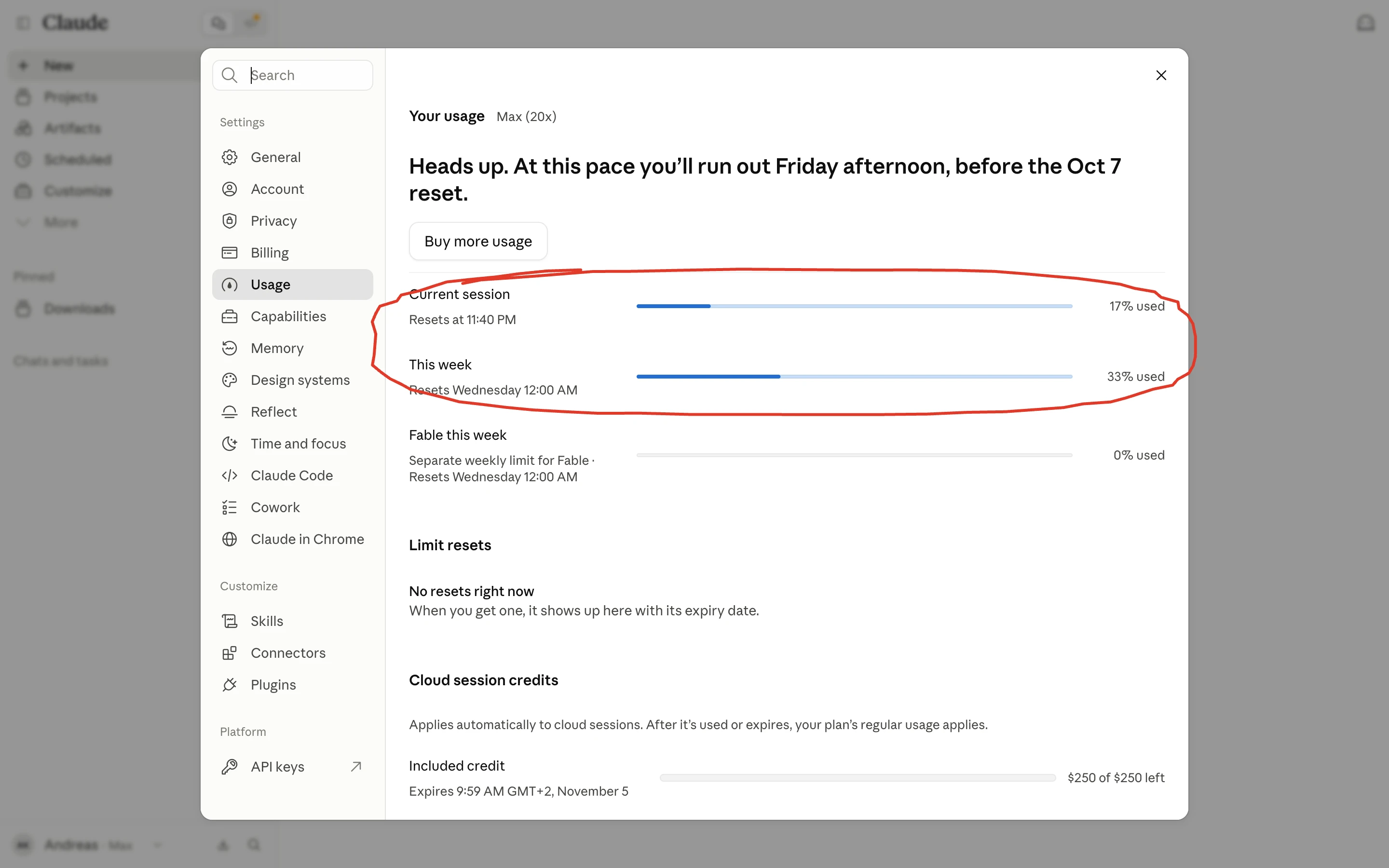
On the page you’ll see:
- Current session: how much of the session you’ve used and what time it resets
- This week: the weekly limit and the day it resets
- on mine, a separate weekly limit for Fable, the heaviest model
- a warning when you’re using it up fast
Mine says that at this pace I’ll run out on Friday afternoon (yes, I use it a lot).
What burns through your limits fastest:
- very long chats
- the heaviest model and high thinking effort
- Cowork and jobs that run many steps on their own
- lots of jobs running at the same time
If you hit the limit, you wait for it to reset or you buy extra usage, the usage credits, with a monthly cap you set yourself. Anthropic explains exactly how the limits are counted on its page about usage limits.
✓ Tip: when a chat gets very long, open a new one, because the longer it gets, the more of your limits it uses. Ask it for a summary of what you’ve covered and carry on from that summary in a new chat.
What you see on the screen
The Claude screen has 2 parts: in the middle, the field where you type or talk, and on the left, the sidebar with your projects, your finished files and your settings. Those two get you comfortably through the first week, and you open the rest when you need it.
Where you type and which model you pick
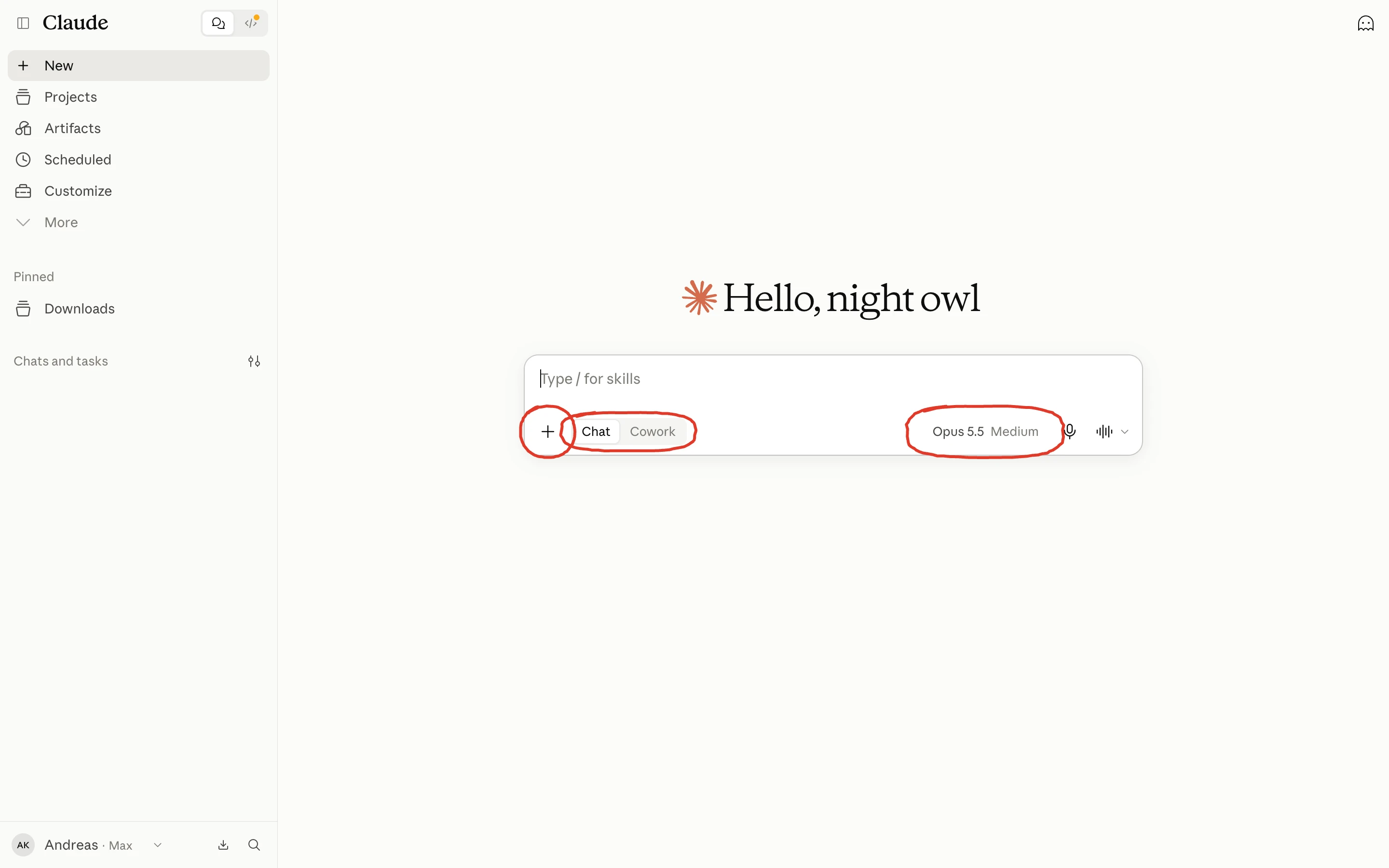
- The “Type / for skills” field: this is where you type. Press “/” and the list of your skills opens
- “+”: you upload files and add whatever else the job needs
- Chat and Cowork: the switch between a conversation and the mode that takes on a whole job
- Model and Effort: which model does the work and how much it thinks before it answers
In my account I choose between 4 models. On Free there are fewer.
- Fable 5.1: for the hardest jobs
- Opus 5.5: for complex work and for everyday tasks
- Sonnet 5.5: for simpler jobs, using less of your limits
- Haiku 4.5: for quick answers
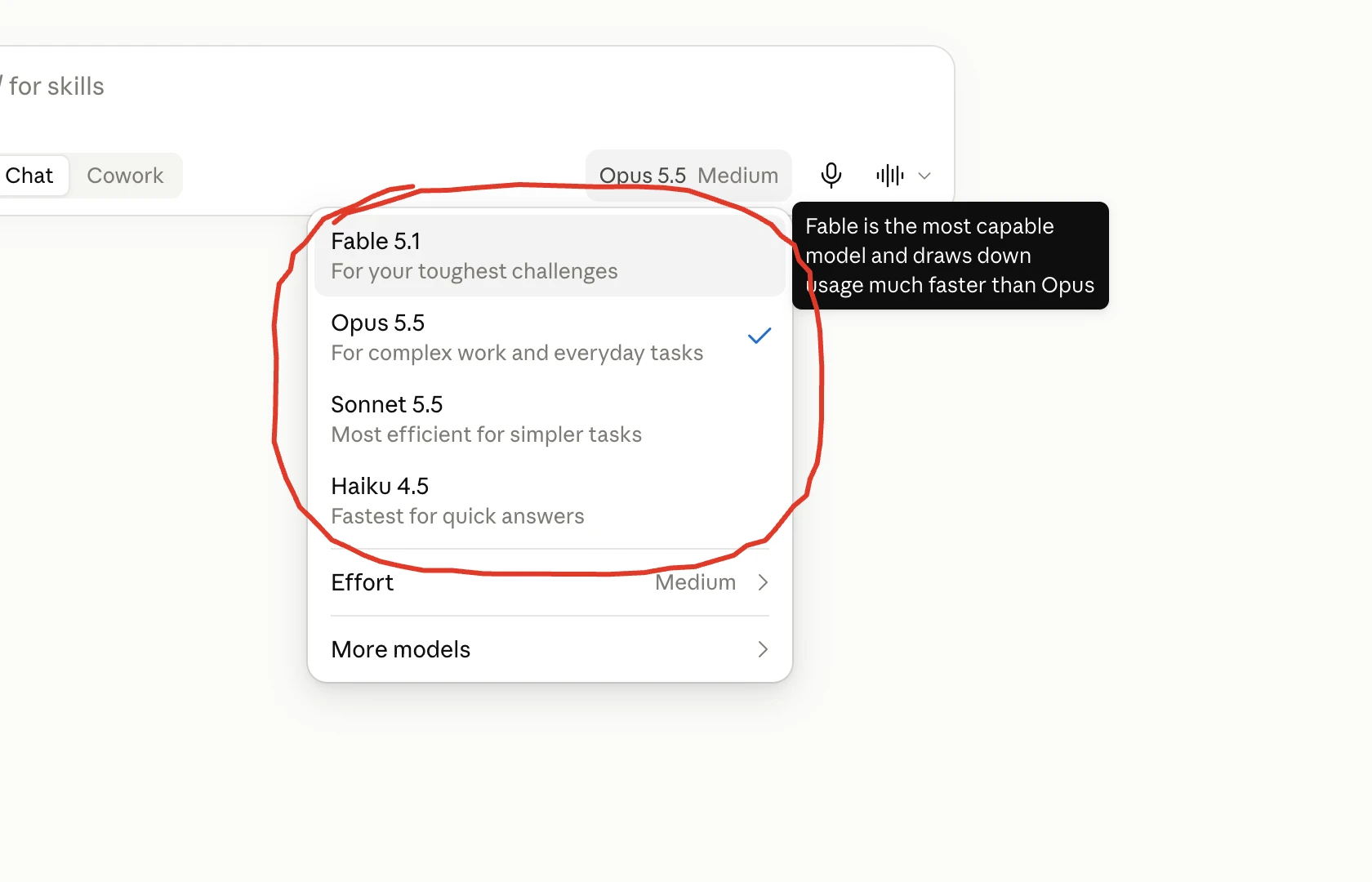
I use Opus 5.5 for everyday work. Fable is for the really hard stuff, and as the menu itself says, it draws down your limits much faster than Opus.
Effort sets how much it thinks before it answers. More thinking gives you a more careful answer on hard problems and uses more of your limits.
Something that changes the result a lot: I say most things out loud. When you talk, you give far more context than you’d ever type. That’s why I use SwiftType, a free app for Mac and Windows that turns whatever you say into text.
Where to find your projects and skills
In the sidebar, all you need is to know where each thing is.
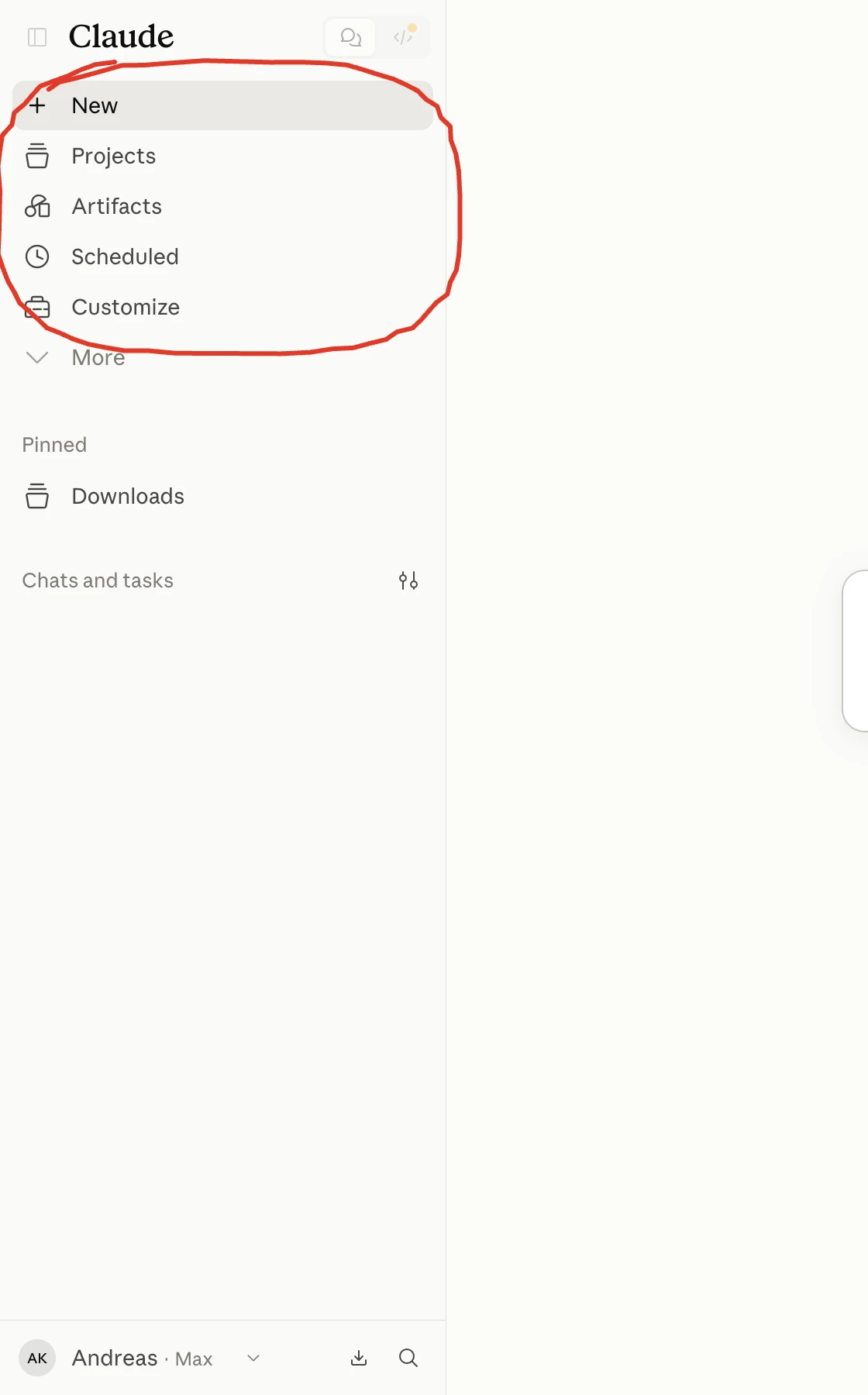
- New: a new chat
- Projects: spaces for work you repeat, with their own instructions and files
- Artifacts: everything it has made for you, pages, tools and documents
- Scheduled: jobs that run on their own at the time you set, with ready-made ideas like a morning briefing or clearing out your inbox
- Customize: your skills, connectors and plugins
- More, Pinned and Chats and tasks: the rest, whatever you pin and all your chats (my list is hidden in the screenshots of this guide)
At the bottom left you’ll find your name with your plan, the button to download the app and the search for your chats.
The settings I change first
Claude’s settings open from your name at the bottom left, under Settings. There are lots of sections, and 3 are worth a look before your first serious chat: your instructions for Claude, memory and privacy, because they decide how it answers you and what it keeps from what you tell it.
Under General you can change the theme, the font and the voice, if you like. Leave everything else as it is for now.
What you want it to know in every chat
In Settings there’s a box called Instructions for Claude. Claude keeps whatever you write there in mind in every chat and in Cowork. In the same section you fill in your name, what you’d like it to call you and what kind of work you do.
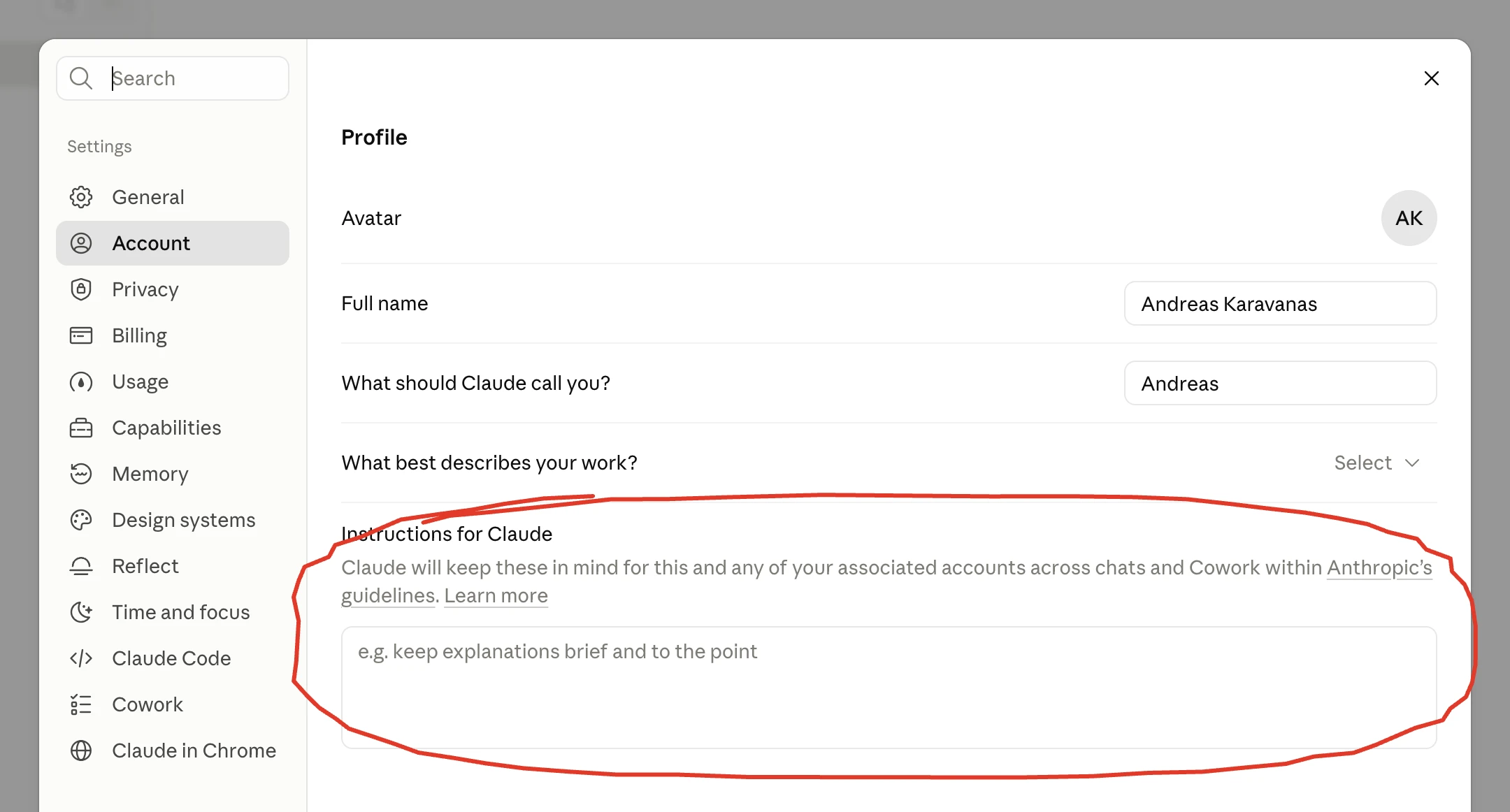
What goes in there? Rules you want it to follow every time:
- “push back when you disagree with me”
- “explain things simply, like I’m 10”
- “when you give me a solution, give me one alternative too”
In my own account the box is empty (yes, you read that right). Memory does that job for me, and you’ll see it next.
✓ Tip: if you don’t know what to write, ask Claude to write your instructions for you. Tell it who you are, what you do and how you want it to talk to you, and it gives them to you ready to paste.
What it remembers about you
Claude remembers things from your chats: who you are, what you do, how you like your answers. Memory is available on every plan, Free included.
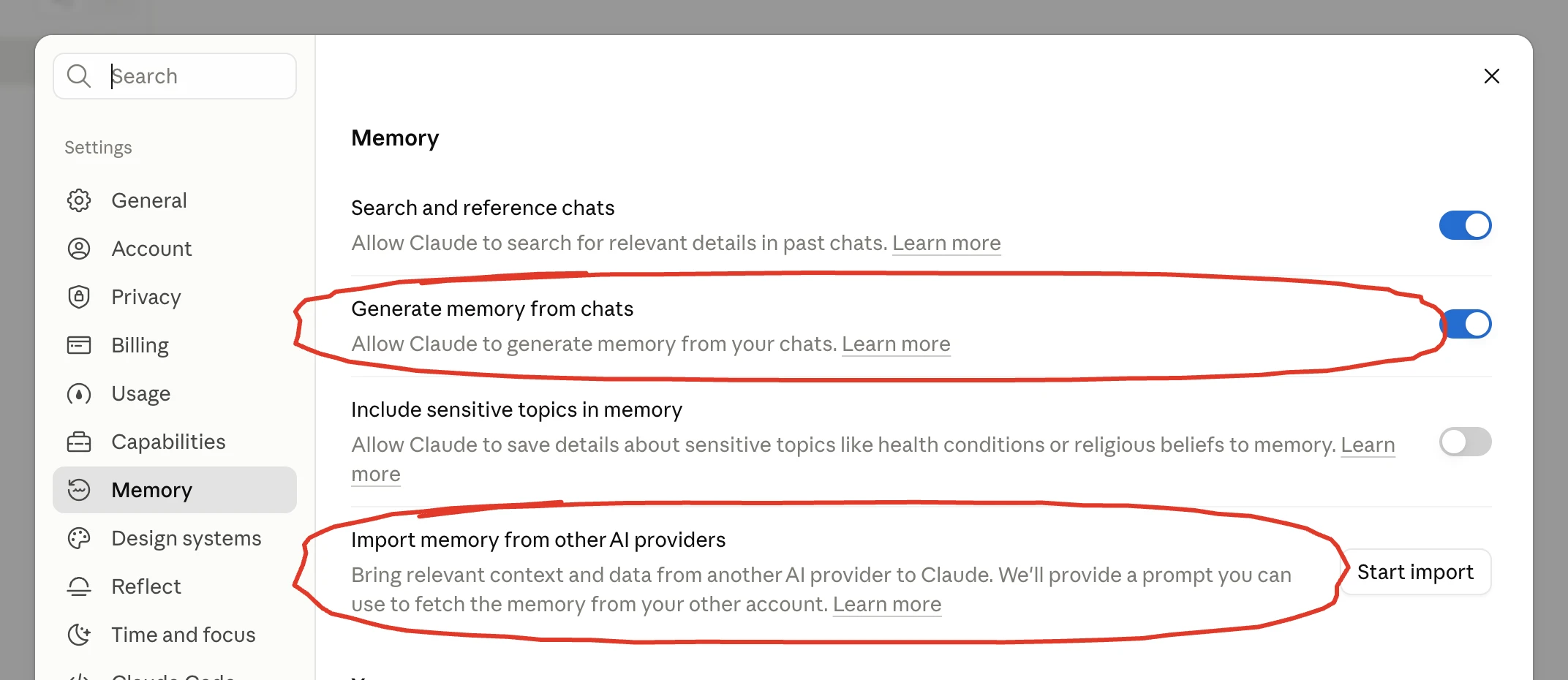
- Search and reference chats: it searches your past chats when you ask about something you talked about before
- Generate memory from chats: it keeps what it learns about you on its own
- Import memory from other AI providers: if you used ChatGPT, it gives you a prompt to bring over what ChatGPT knows about you
My memory is on, and it has picked up who I am and how I like my answers, so every new chat already starts from there.
2 more things. If you tell it “remember this”, it keeps it, and if you tell it to forget something, it removes it from memory. And files you uploaded in an old chat don’t stay in its memory: you upload them again, or you work inside a project.
How to protect your data
In Settings, under Privacy, there’s a setting called Help improve our AI models. When it’s on, Anthropic can use your chats to train its models.
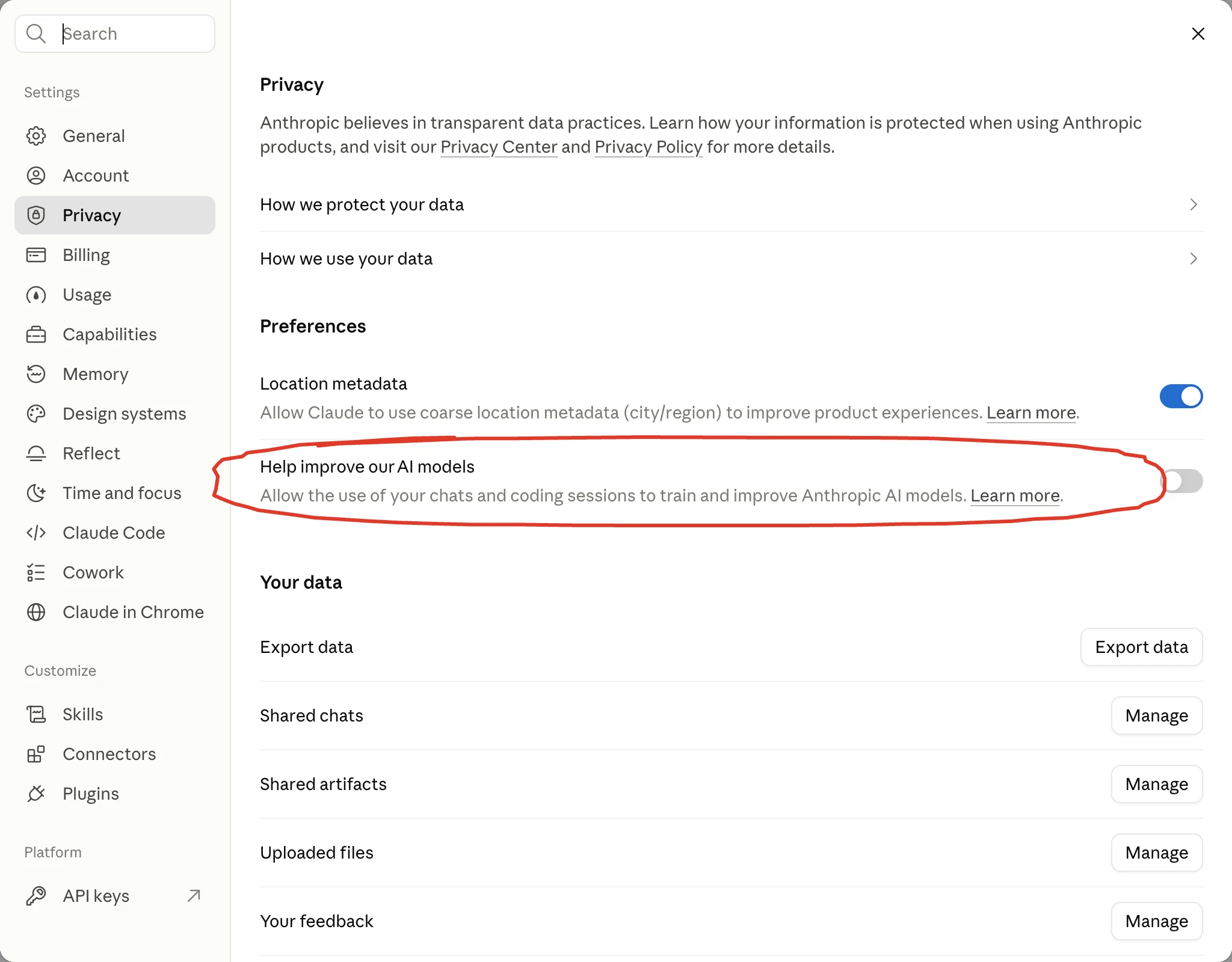
I keep it off. Check yours, and switch it off if you don’t want your chats used this way. Anthropic’s privacy page for this setting walks you through the steps too.
⚠ Careful: whatever the setting says, some things you never give it: passwords, customer data with real names, your employees’ personal details, contracts with names on them. Where a name is needed, use a fake one. And before you click Share on a chat, remember that anyone with the link sees a snapshot of the conversation, without needing an account.
Chats and projects
In Claude, a chat is for something you do once: you give it the context in your message and you get an answer. A project is for work you repeat: the instructions and the files stay inside it and apply to every chat in that project.
An example: in a chat you say “summarize the document I got today”. In a project you say “prepare the proposal”, and Claude already has your prices and the proposals you’ve sent in front of it.
How to write to Claude
What you write to Claude is called a prompt. It’s simply your instruction.
The key is how much you explain. You only need 2 simple rules to get a long way.
Rule 1: tell it exactly what you want. If you write “write me an email to a client”, you’ll get something generic. Write “write a short, polite email to client X, who’s waiting for the proposal, saying I’ll send it tomorrow, in the tone I’d use myself”.
Rule 2: give it context. We covered this above, and almost every result depends on it.
And end your message by asking it to ask you whatever it needs before it starts. That way it doesn’t guess.
⚠ Careful: when the result comes out bad, most of the time the instruction is to blame. Claude is like a very good employee who needs their manager, you, to say clearly what you want.
When I open a project
A project is a space for one job, with 3 things inside: instructions that apply only there, files it reads every time, and all the chats for that job. You open one from Projects, with New project.
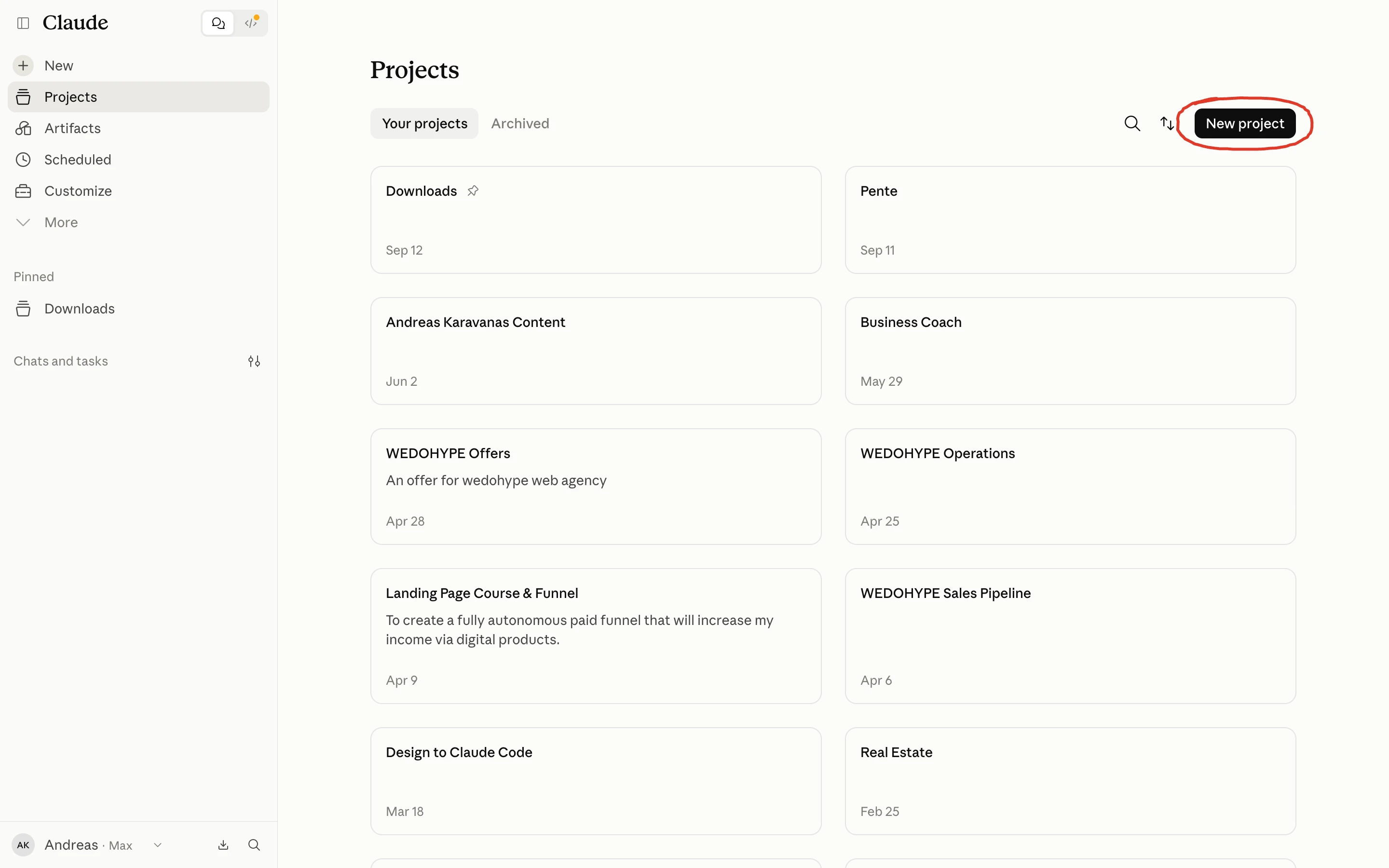
I have a project for proposals, one for operations, one for sales and one for my content. In the content project I’ve added how I write and some of my old articles, so every chat has the same reference point.
How do you split them? By client, by brand or by process, whatever works for you. But if you have 2,000 clients, 2,000 projects will drive you crazy. In that case you make one project for the shared work and a new chat for each client.
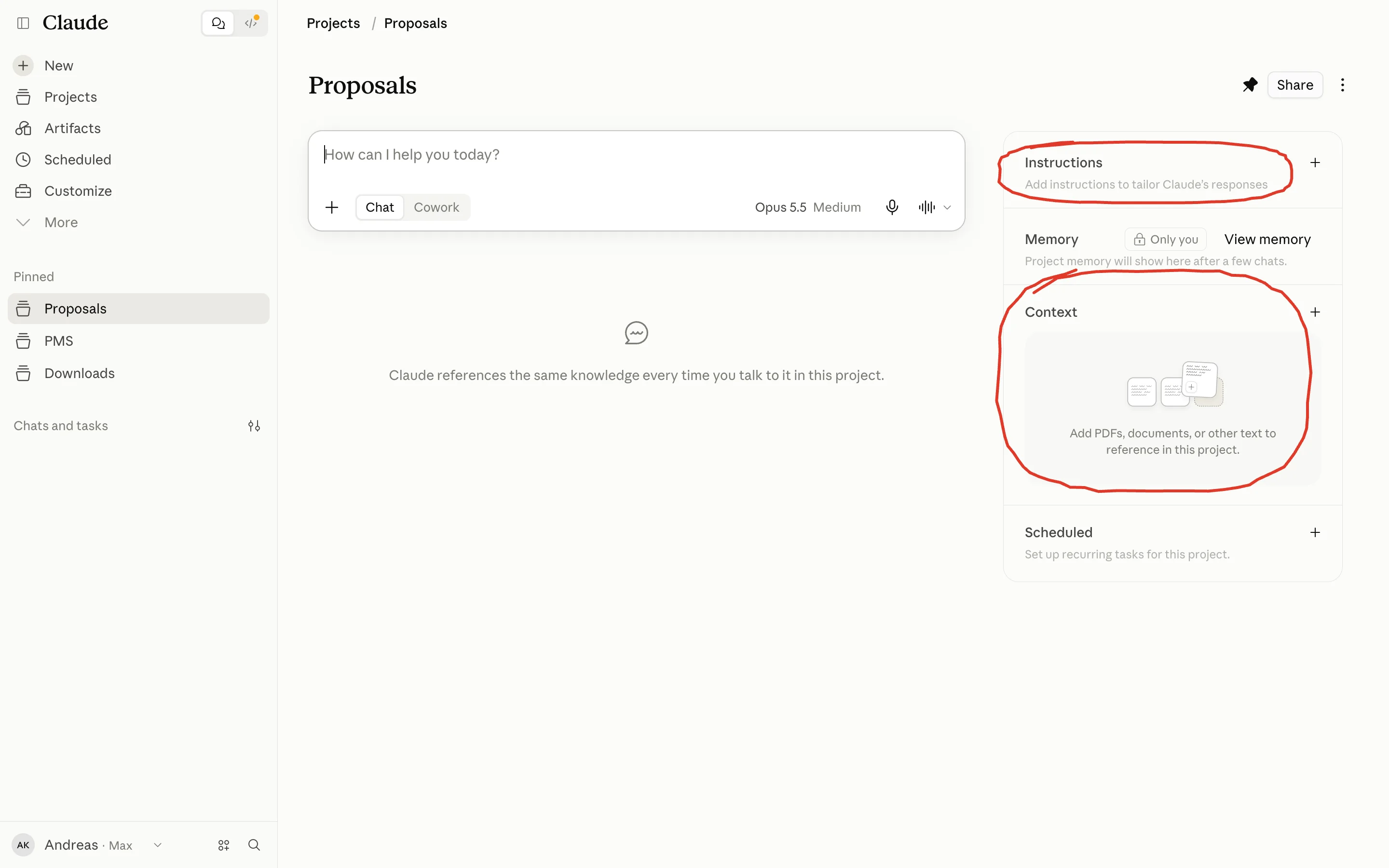
To show you how it’s set up, I opened an empty project called Proposals. The form asks you 2 things: what you’re working on and what you’re trying to achieve.
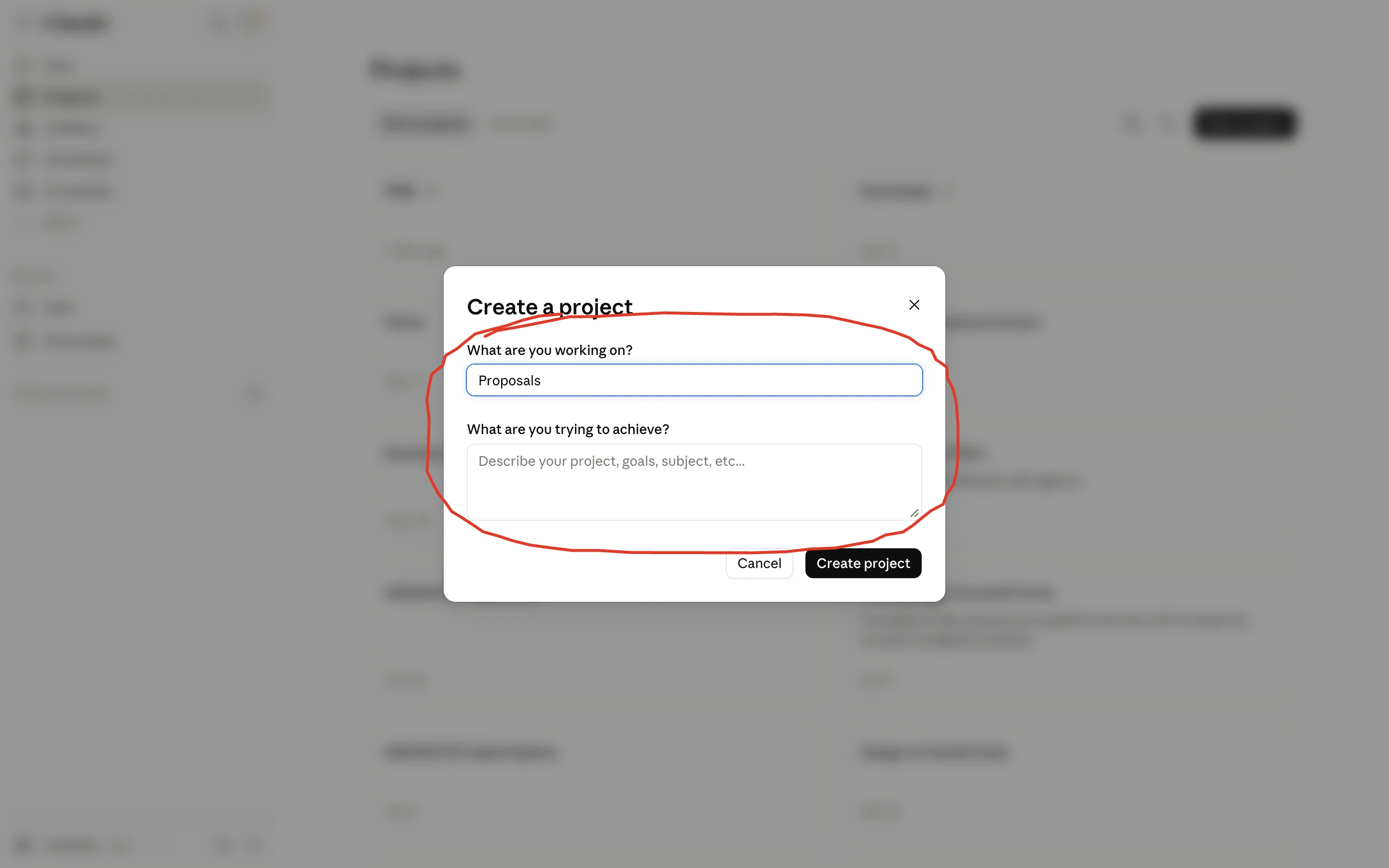
Inside the project, on the right, you’ll find Instructions and Context, which is where your files go. That’s where you add, for example, your price list, 2-3 proposals you sent and liked, and an instruction about tone. Between the two sits the project’s memory, and below them its scheduled jobs.
On Free you can create up to 5 projects.
What is Claude Cowork
Claude Cowork is Claude taking on a whole job: you tell it the result you want, it works through the steps on its own and hands you back files, like an organized folder, a document or a spreadsheet. You open it with the Chat and Cowork switch under the field, on the paid plans.
The Claude Code you saw in the plans builds websites and tools. Cowork does office work: documents, spreadsheets, presentations, folders.
In the desktop app you give it access to a folder. It reads the files in it, organizes them and creates new ones right there.
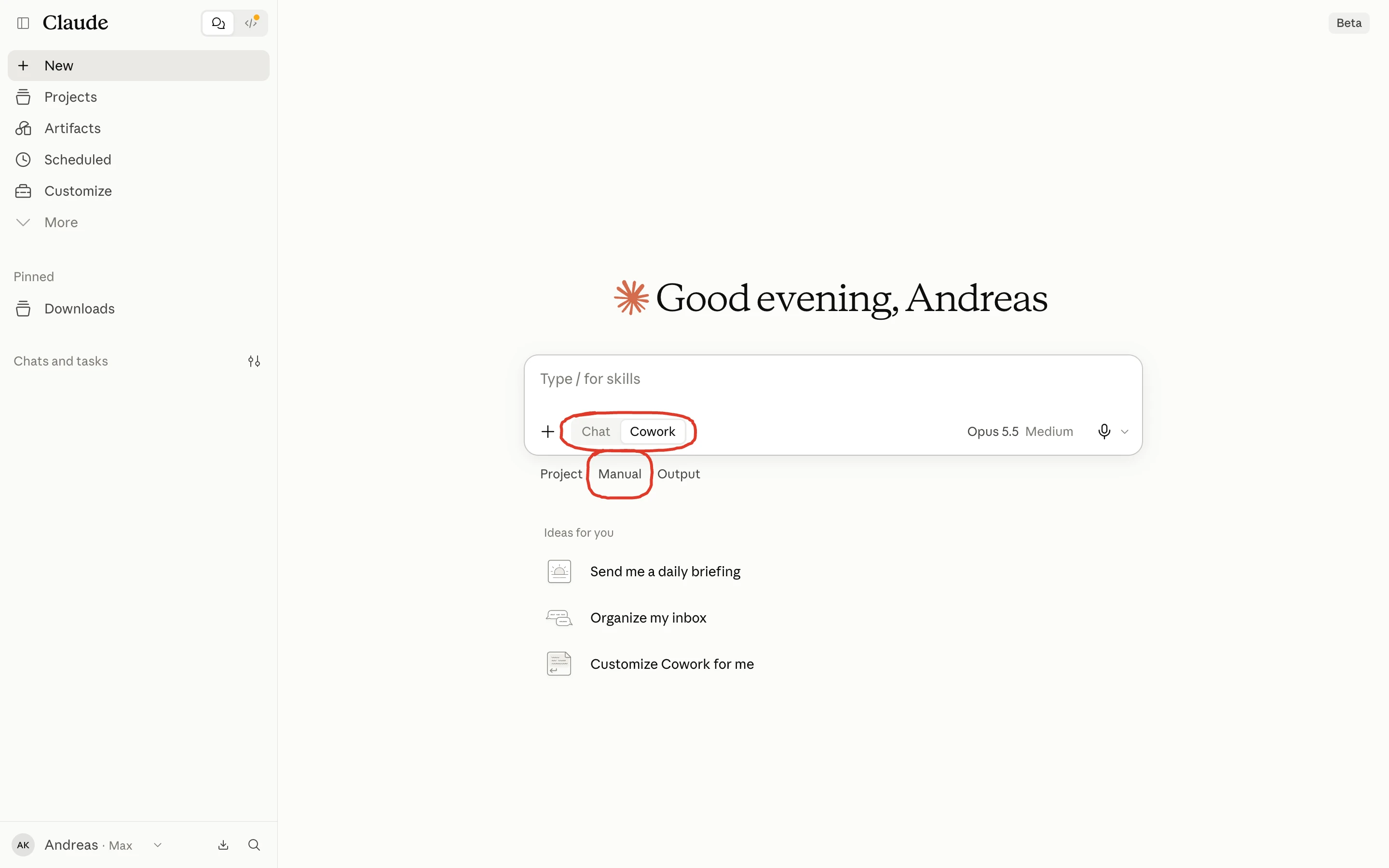
Under the field you’ll see Manual, which is the default: it asks you before every action. Switch it to Auto and it carries on by itself, with automatic safety checks. And before it permanently deletes a file, it asks for your permission.
The first job I suggest is a simple one: the scattered files in a folder. You pick the folder, you first ask it for a plan of how it will organize them, and once you like the plan, you tell it to go ahead. Start small, until you see how it works.
On its home screen it also suggests ready-made ideas, like a daily briefing or organizing your inbox.
⚠ Careful: start with a folder you don’t mind it changing. Leave access to your whole computer for when you know how it works.
If you’re on Pro or Max and you don’t see the Chat and Cowork switch, you already have the new experience: Anthropic is gradually merging the two into one. You write whatever you want in the same chat, and Claude decides by itself whether to answer you or take on the job. Once you have it, you can’t go back to the old one.
One more thing for Pro and Max: from 6 October 2026, Cowork tasks run in the cloud, so they keep going even after you close your laptop. For the files on your computer, the desktop app needs to be open. Anthropic’s guide to Cowork has the details.
| Chat | Project | Cowork | |
|---|---|---|---|
| When | for something you do once | for work you repeat | for work you want back as files |
| What it keeps | whatever you write in that chat | instructions, files and all the chats for that job | the folders and files you give it |
| What you get back | an answer in the chat | an answer shaped by your instructions and files | finished files |
Connectors and skills
Connectors link Claude to apps you already use, like Gmail and Google Drive, so it works inside them without any copy and paste. Skills are instructions for a job you do often, written once. You’ll find both in Claude, under Customize.
How to connect it to Gmail and Drive
In Customize, on the Connectors tab and then Discover, you’ll see the most popular ones: Google Drive, Gmail, Google Calendar, Microsoft 365, Notion, Canva, and thousands more in Anthropic’s connectors directory. You pick one, sign in to your account in that app and give it permission.
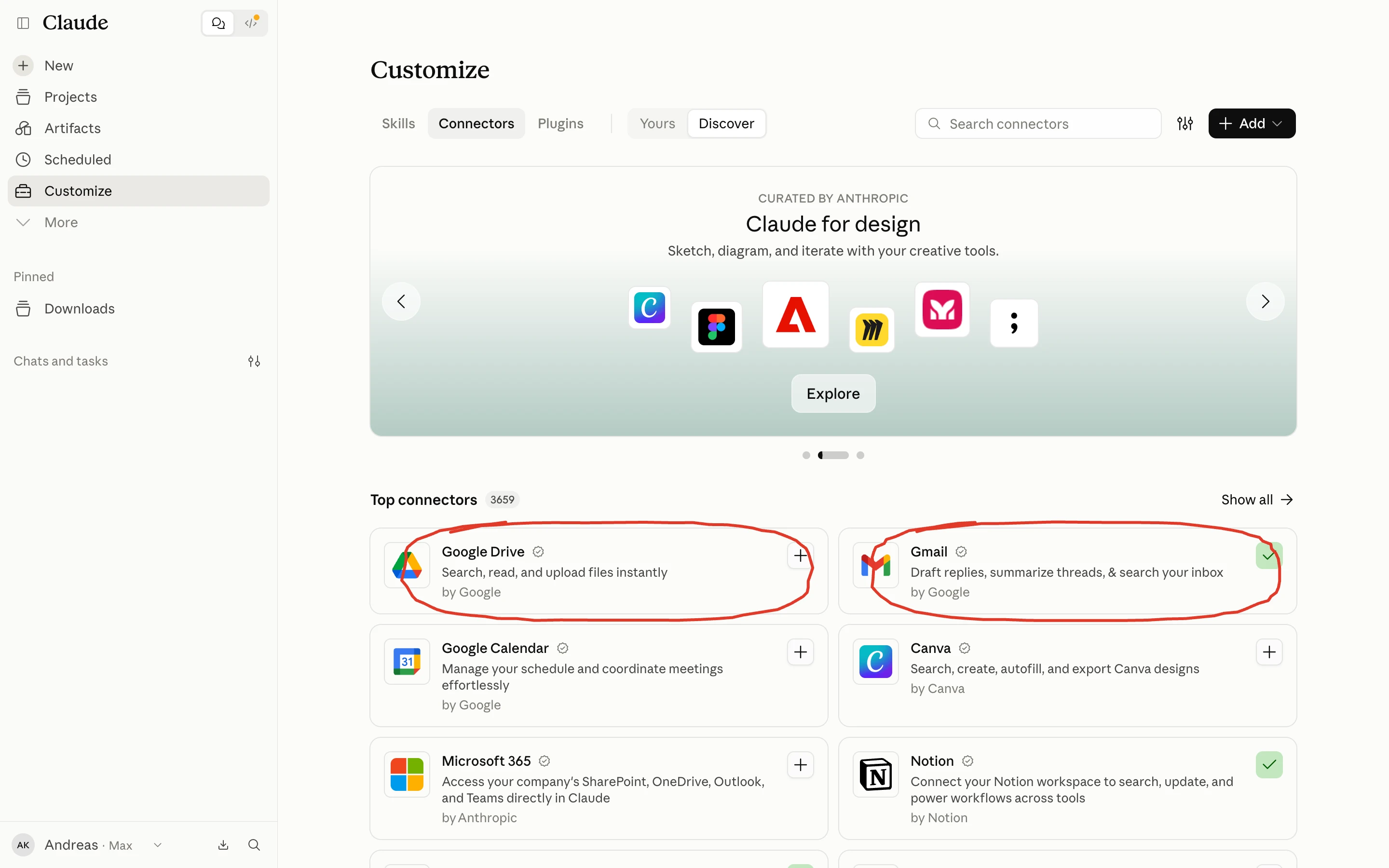
What can you do once Gmail is connected? Ask it to pull up your 5 most recent emails, sort them into categories, or prepare draft replies that you check before they go out.
⚠ Careful: every connector gives Claude access to your account. Start with requests that only read, and leave anything that writes, sends or deletes for later.
What if the software your business runs on has no ready-made connector, like an ERP built for your local market (the system with your orders, your stock and your invoices)? Then someone has to build one specifically for it. That’s the work we take on at our company, Liberators AI.
How to make your first skill
A skill is the method for a job you do again and again: the way you analyze numbers, reply to messages or put together a proposal. You make it once, and from then on Claude knows it.
An example: you build a presentation with Claude, with your logo, colors and fonts, and you turn it into a skill. The next time, you get the same structure with different content.
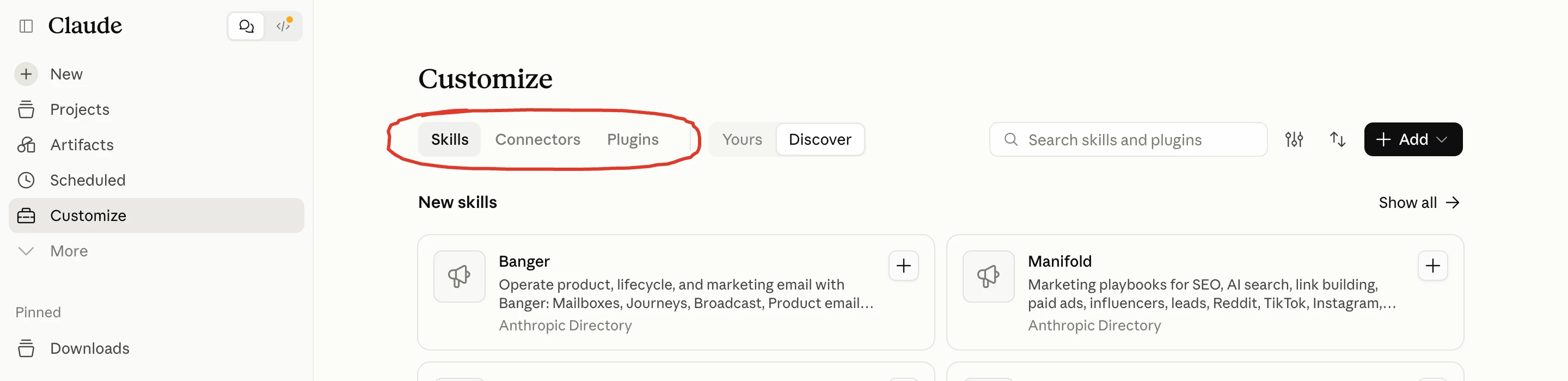
Under Discover there are ready-made skills from Anthropic’s directory that you add with one click. Claude makes your own skills for you: you describe what you want in the chat, for example turning something that came out well into a skill, and it writes it.
If you already have a skill in a file, you upload it from Customize, under Skills, with “+”, “Create skill” and “Upload a skill”. Skills are available on every plan, Free included.
You call a skill by typing “/” in the field followed by its name. I have skills for proposals, copy, briefs and quality checks, and I find them all with a single “/”.
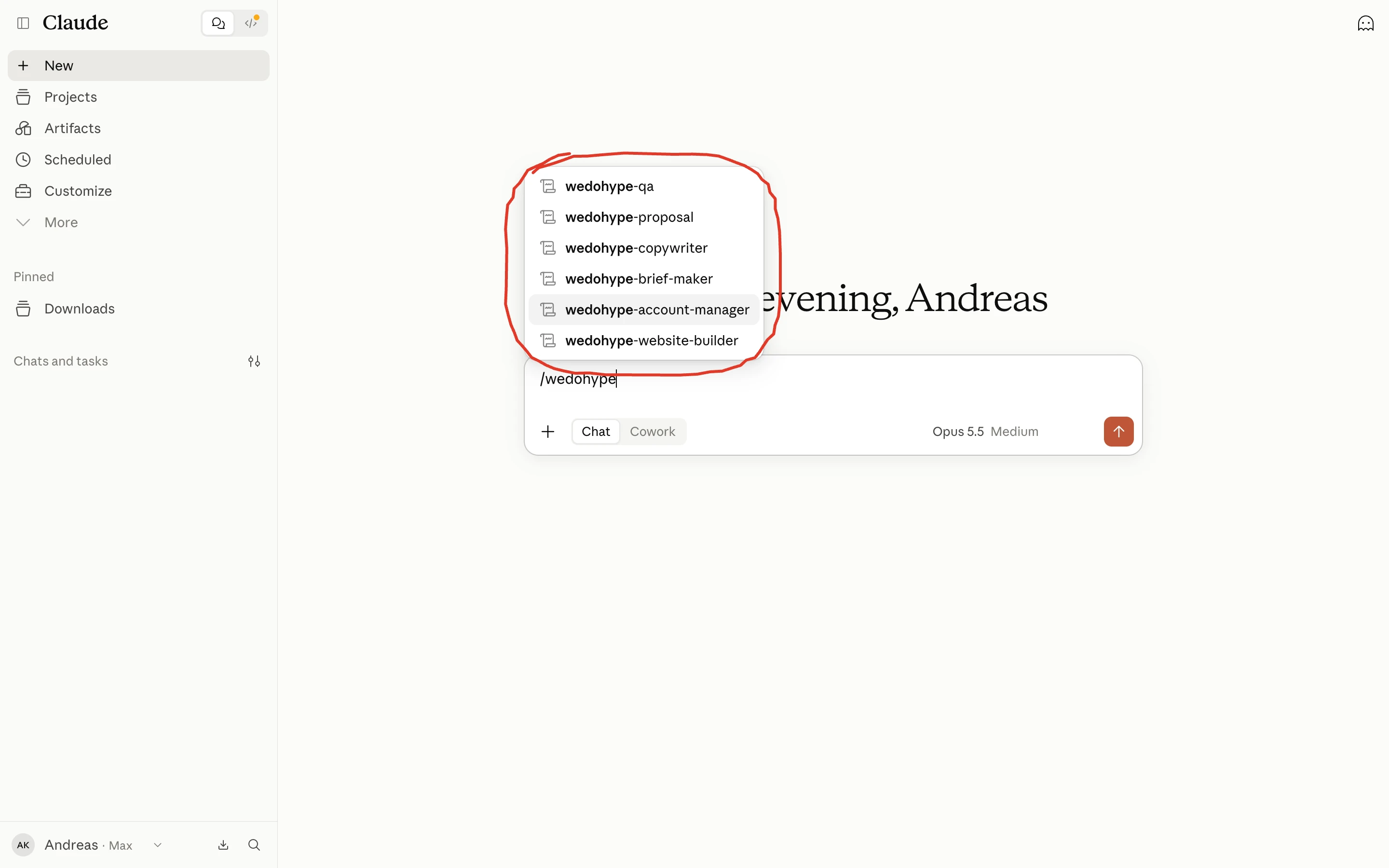
★ Remember: the skill is the method. The connector is the app it uses.
Plugins, the third tab, are bundles of skills and connectors together, made for a specific role.
The order I set it up in
I set up Claude in this order, from the simplest step to the most complex, and it’s the same order I suggest to anyone who’s just starting out. If you switch everything on during your first day, you’ll get lost.
- account and desktop app
- instructions, memory and privacy, in 10 minutes
- chats on Free for 1-2 days, then Pro
- one project for the job you repeat most often
- Cowork on a folder you don’t mind it changing
- one connector, email or Drive, read-only at first
- your first skill, from something that came out well
- Scheduled, for a job that already runs reliably
To start, pick a job that eats up your time every week. A 2-sentence email is quicker to write yourself.
Once one task works, move on to the next.
10 things to try in your first week
Pick 3 of these and do them this week:
- give it a long PDF (a report, a contract without names) and ask for a half-page summary
- write a difficult email to a client together
- ask it to prepare the agenda for a meeting
- give it today’s numbers and ask what it sees
- have it write 3 versions of a piece of copy for your website
- ask it to explain a term you don’t understand, like you’re 10
- give it a to-do list and ask it to put it in order of priority
- ask it to draft a reply to a customer complaint
- have it check something you wrote for mistakes and anything unclear
- ask it for a simple plan for something you keep putting off
What to do next
Open Claude today and give it this:
“I’m going to explain a job I do every week that wears me out. Ask me whatever you need to understand it fully, and then do it for me.”
✓ Tip: keep a file with the prompts that worked for you. That’s the start of your own system. The ones you reuse often, you later turn into skills.
If you’d like to talk through what this could look like in your business, email me.